
Campaign Budget Spreadsheet: Planned vs Actual Spend
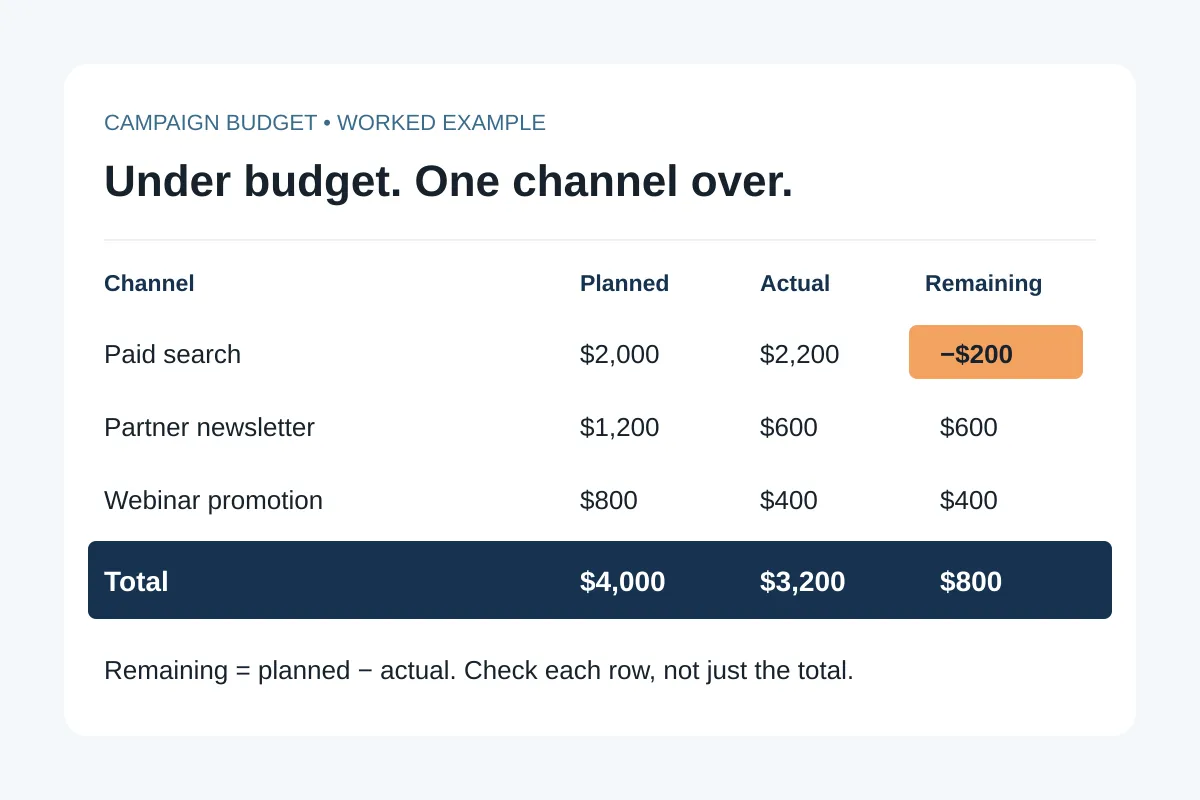
A campaign budget spreadsheet tracks planned vs actual spend by channel, then subtracts actual spend from the plan to show what remains. Use the same campaign dates and currency for every row. A negative remaining amount means that channel is over budget; a positive total doesn't mean all of that money is free to spend.
Set up a campaign budget spreadsheet for planned vs actual
Start with four columns: Channel, Planned spend, Actual spend and Remaining budget. Add one row per channel and a total row underneath.
Before entering figures, write the campaign name, start and end dates, currency, and date of the latest spend update above the table or in a separate notes tab. Decide which costs the tracker covers—media only, or media plus creative and supplier fees. Apply that choice to both planned and actual figures.
- Planned spend: the amount approved for that channel over the campaign period.
- Actual spend: the costs recorded so far for the same channel and period, using your agreed reporting basis.
- Remaining budget: planned spend minus actual spend. This is a comparison with the plan, not a bank balance.
Keep the original approved plan. If someone approves a revision, save a dated copy or record the revised plan separately so the change doesn't erase the overspend you were trying to explain.
Use planned minus actual for remaining budget
If column B contains planned spend and column C contains actual spend, enter =B2-C2 in D2. Copy the formula down the channel rows.
For three channels in rows 2–4, put these totals in row 5:
| Cell | Formula | What it calculates |
|---|---|---|
| B5 | =SUM(B2:B4) |
Total planned spend |
| C5 | =SUM(C2:C4) |
Total actual spend |
| D5 | =B5-C5 |
Total remaining budget |
Label the last column “Remaining budget,” rather than just “Variance.” Some trackers calculate actual minus planned instead, which reverses the signs. For this layout, positive means under plan and negative means over plan.
If you add channel rows, extend both the formulas and the total ranges. Formatting a cell as currency doesn't convert its value: don't mix dollars, euros or other currencies in the same total.
Read the channel rows before the total
Say you're a marketing coordinator running a four-week webinar campaign with a $4,000 budget. These fictional figures show the spend recorded at the end of week three:
| Channel | Planned spend | Actual spend | Remaining budget |
|---|---|---|---|
| Paid search | $2,000 | $2,200 | −$200 |
| Partner newsletter | $1,200 | $600 | $600 |
| Webinar promotion | $800 | $400 | $400 |
| Total | $4,000 | $3,200 | $800 |
The campaign is $800 under its overall plan, but paid search is already $200 over its allocation. Check the search spend against its source report, then ask the campaign owner whether to reduce future spending or approve a transfer from another channel. Changing the spreadsheet alone won't change a live advertising budget.
Next, investigate the two underspent rows. The newsletter may have a second placement booked, and webinar promotion may have work still to deliver. Unspent amounts aren't automatically available for paid search.
Subtract outstanding commitments before reallocating
A commitment is an agreed cost that hasn't yet been included in actual spend. Track outstanding commitments in a separate notes table or an extra column if your workbook supports it.
In the same example, suppose a $600 second newsletter placement is booked and a $150 promotion fee is still outstanding. Neither is included in the $3,200 actual spend yet.
- Budget remaining against recorded spend: $800.
- Outstanding commitments: $600 + $150 = $750.
- Amount left after those commitments: $800 − $750 = $50.
That $50 is the headroom before any other unrecorded costs or new work. Don't subtract a commitment again after its cost moves into actual spend. Review the commitments list alongside each spend update to avoid double counting.
Make each update traceable
At each review, follow the same sequence:
- Collect channel reports and supplier cost records for the campaign dates.
- Replace actual figures with cumulative spend to date. Don't add a cumulative export to last week's cumulative total.
- Record the update date and source report in your notes.
- Check negative channel balances, then the overall remaining amount.
- Review outstanding commitments and any approved budget changes.
- Write the decision, owner and next review date.
For example: “Week three: paid search is $200 over plan. Only $50 remains after booked costs. Campaign owner to review search delivery before approving further spend.” That gives the next reviewer a decision to follow, rather than a table with unexplained numbers.
A spend tracker doesn't tell you whether a campaign performed well. Underspend can mean delayed activity, and overspend can occur with or without useful results. Review leads, sales or another campaign goal separately before deciding which channel deserves more budget.
Check remaining budget and commitments in your browser
Use the free campaign budget calculator from Ai Master Deals to compare planned and actual spend, then check the separate result after entered commitments. No email or account is needed.
- Enter planned budget and cumulative actual spend for each channel, using one currency and the same campaign period. Enter amounts such as
1250.50, without currency symbols or thousands separators. - Read Remaining as planned minus actual. Add only agreed costs that aren't already included in actual to the optional outstanding-commitments fields. After entered commitments subtracts those entered costs as well; it doesn't change the remaining-budget result.
- Leave commitments blank or mark Unknown if you haven't checked them. Missing commitments contribute nothing to the arithmetic, so the after-commitments figure may match an entered-zero result while still being labelled provisional/incomplete. Enter
0only when you've confirmed no additional commitments outside actual. Blank planned or actual amounts also count as zero once another amount is entered; fill in unknown spend before relying on the result. - Review each channel and the total, then select Download budget check · CSV to keep the entered figures, input statuses and both results. The CSV is created locally in your browser without email access; amounts aren't saved on the page and clear when you reload.
The CSV keeps a budget check for review in a spreadsheet. It is separate from the optional XLSX workbook below.
Start with a small working XLSX
For beginner marketing coordinators and small-business marketers who want a reusable workbook, the free campaign budget XLSX quick start has Read me and Quick start tabs, three editable channel rows, remaining-budget formulas and totals. Email access is required, with no purchase or marketing enrollment. Open it in Excel or import it into Google Sheets, replace the channel names and planned/actual inputs, and leave the formula cells intact—the sample doesn't include commitments, CPL or ROAS.