
Campaign budget calculator
Enter planned budget and actual spend, then optionally add agreed costs not already in actual. See remaining (planned − actual) and a separate difference after entered commitments. Use one currency throughout.
For marketing coordinators. No email or account. Check your budget here, then copy an update or keep a local PNG summary or CSV.
Preparing an update for a colleague? Start with two checked budget-report messages →
Writing a budget guide? Add a local budget check to your page →
- 01Try
Enter planned, actual and optional commitments.
- 02Adapt
Replace example amounts with your figures.
- 03Check & keep
Review missing costs. Copy text or keep a PNG / CSV.
Enter your channel costs
01 / AmountsEnter amounts of 0 or more, with up to two decimal places. Use a decimal point and leave out currency symbols and thousands separators: enter 1250.50, not $1,250.50. Maximum per amount: 999999999.99.
A blank amount counts as 0 once you enter an amount elsewhere. Leave an unused channel blank. If a spend figure is unknown, the result is incomplete until you enter it.
Optional outstanding commitments: agreed costs not already in actual spend. Count each cost once, even if unpaid. Enter 0 only when you confirm none; blank or Unknown is not confirmed zero.
Local-only calculation. Your amounts stay in this page, are not saved or sent to analytics, and clear when you reload. No email needed.
Your budget check
02 / ResultsCompare your entered costs
Add a planned budget or actual spend to see your results, or load the fictional example.
Keep a budget update your team can read
Preview a PNG with every channel, totals, input states and review checks. Save it to your device, then choose whether and where to share it. Figures stay in your browser: no upload, amounts in links or analytics payload.
Copy a plain-text budget update
For beginner marketers: copy the current channel results, totals and review checks into your own message. This text matches the PNG figures and input states; editing amounts updates it immediately. No account, upload or automatic sharing.
Read or select the summary text · same content as the PNG
Campaign budget summary
Ai Master Deals · one currency throughout
No amounts entered · calculated results unavailable

Paid search
Calculated results unavailable
Planned: Not entered — Not confirmed zero
Actual: Not entered — Not confirmed zero
Remaining: Unavailable — Check inputs
Entered commitments: Not entered — Not confirmed zero
After entered commitments: Unavailable — Check inputs

Display ads
Calculated results unavailable
Planned: Not entered — Not confirmed zero
Actual: Not entered — Not confirmed zero
Remaining: Unavailable — Check inputs
Entered commitments: Not entered — Not confirmed zero
After entered commitments: Unavailable — Check inputs

Partner newsletter
Calculated results unavailable
Planned: Not entered — Not confirmed zero
Actual: Not entered — Not confirmed zero
Remaining: Unavailable — Check inputs
Entered commitments: Not entered — Not confirmed zero
After entered commitments: Unavailable — Check inputs

Total · all channels
Calculated results unavailable
Planned: Unavailable — Check missing planned / actual
Actual: Unavailable — Check missing planned / actual
Remaining: Unavailable — Check inputs
Entered commitments: Unavailable — Incomplete · entered amounts only
After entered commitments: Unavailable — Check inputs

Review before sharing
Enter amounts for calculated results.
Use one currency throughout; no currency is inferred or converted.
Remaining = planned minus actual. After entered commitments = planned minus actual minus entered commitments.
Blank planned / actual counts as 0 in arithmetic, not confirmed zero. Blank or unknown commitments contribute nothing to the entered-only subtraction, not confirmed zero.
Check missing costs and confirm zero explicitly. Include only agreed costs not already in actual; count each cost once.
These figures are not a forecast, approval or recommendation to spend. Review amounts and recipient before sharing.

Free calculator: https://ai-master-deals.brainer.one/tools/campaign-budget-calculator
Keep your budget check
Download a CSV for beginner marketers with your entered channel figures, planned, actual, commitments entry states and both separate results. Open it in a spreadsheet or keep it for reference. No email or account needed.
No amounts entered yet. The CSV labels empty inputs and leaves calculated amounts and totals unavailable. Created locally in your browser; nothing is sent to a server or analytics.
Review a budget update before forwarding
Use one currency and campaign period. Enter 0 only for a confirmed zero; leave missing spend blank and mark unreviewed commitments Unknown. Preview the summary, check the channel rows and input-status labels, then save the PNG or copy the text. After changing amounts, create a fresh summary. Exports are created in your browser; you choose whether and where to send them.
Try either checked example, then edit the fields or reset for your own figures. Example links identify only these fixed inputs, never your entered amounts. Opening a link does not load or replace a calculation.
Complete update · reviewed inputs
Say a workshop campaign has these reviewed figures, all in USD for 1–15 November.
| Channel | Planned | Actual input | Commitments input | Remaining | After entered commitments |
|---|---|---|---|---|---|
| Paid search | 1200.00 | 1286.45 | 0.00 · confirmed zero | −86.45 | −86.45 |
| Display ads | 800.00 | 412.30 | 175.25 · entered | 387.70 | 212.45 |
| Partner newsletter | 0.00 | 0.00 · confirmed zero | 0.00 · confirmed zero | 0.00 | 0.00 |
| Total | 2000.00 | 1698.75 | 175.25 · entered only | 301.25 | 126.00 |
Suggested update
Workshop campaign · USD · 1–15 November. Reviewed inputs: planned 2000.00; actual 1698.75; remaining 301.25. Entered commitments 175.25; after entered commitments 126.00. Paid search is 86.45 over plan. Search commitments and every newsletter amount are confirmed zero.
Before forwarding
Check the 1286.45 search spend and 412.30 display spend against records. Confirm the 175.25 display booking is agreed and not already included in actual. Verify the newsletter is unused and has no agreed costs. A positive total does not cancel search overspend or authorize more spending.
Incomplete update · costs still missing
For the same campaign, suppose display spend has not arrived and newsletter commitments have not been checked. Keep display actual blank; select Unknown for newsletter commitments. Do not replace either with a confirmed zero.
| Channel | Planned | Actual input | Commitments input | Remaining | After entered commitments |
|---|---|---|---|---|---|
| Paid search | 1200.00 | 1286.45 | 0.00 · confirmed zero | −86.45 | −86.45 |
| Display ads | 800.00 | Blank / missing | 175.25 · entered | 800.00 | 624.75 |
| Partner newsletter | 0.00 | 0.00 · confirmed zero | Unknown · not confirmed zero | 0.00 | 0.00 |
| Total · provisional | 2000.00 | 1286.45 · entered only | 175.25 · entered only | 713.55 | 538.30 |
Suggested update
Workshop campaign · USD · 1–15 November. Provisional / incomplete: display actual is missing and newsletter commitments are unknown. Entered figures show planned 2000.00; actual 1286.45; remaining 713.55; entered commitments 175.25; after entered commitments 538.30. Paid search is 86.45 over plan. Missing costs contribute nothing to these calculations; they are not confirmed zero.
Before forwarding
Obtain display spend and review newsletter commitments. If sending an interim update, keep both missing-input warnings with the totals. Recalculate and replace the saved summary after the missing figures are entered; 538.30 is not a complete balance or a recommendation to spend.
Budget summary · demonstration
Keep a readable update for your next budget review. This invented USD campaign shows channel results, confirmed zero and an unknown commitment—not just a positive total.
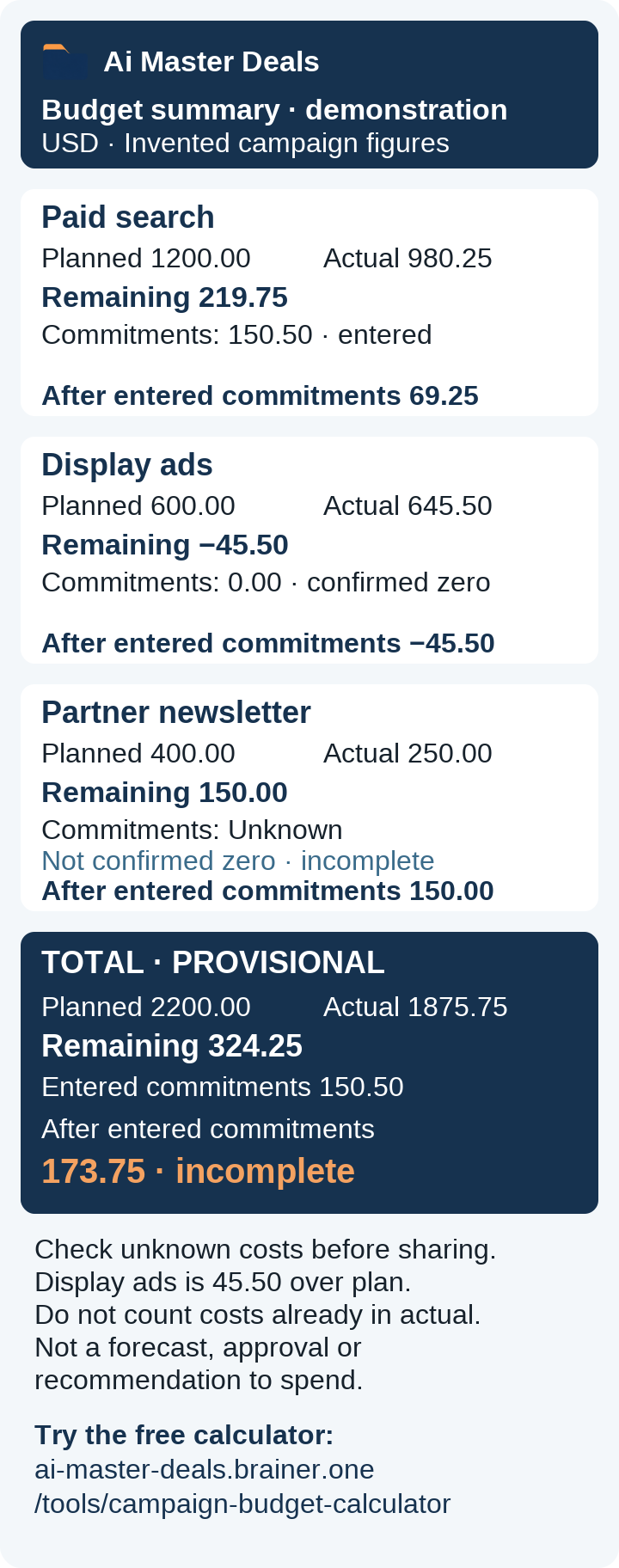
Read the demonstration as text
Ai Master Deals · USD · Budget summary demonstration
Paid search
Planned 1200.00; actual 980.25; remaining 219.75. Commitments: 150.50 (Entered). After entered commitments: 69.25.
Display ads
Planned 600.00; actual 645.50; remaining −45.50. Commitments: 0.00 (Entered · confirmed zero). After entered commitments: −45.50.
Partner newsletter
Planned 400.00; actual 250.00; remaining 150.00. Commitments: — (Unknown · not confirmed zero). After entered commitments: 150.00 · provisional / incomplete.
Total: planned 2200.00; actual 1875.75; remaining 324.25; entered commitments 150.50; after entered commitments 173.75 · provisional / incomplete.
Provisional / incomplete: partner newsletter commitments are unknown, not confirmed zero. Review missing costs and avoid counting any cost already in actual. Not a forecast, approval or recommendation to spend. Display ads is 45.50 over plan even though the total remaining is positive.
Free tool: https://ai-master-deals.brainer.one/tools/campaign-budget-calculator
Enter your own figures, review each channel and any missing costs, then preview and save your local summary. Saving does not send an update to anyone.
Try your own summary →Read the difference, not a forecast.
A positive remaining amount is the difference between your plan and the spend entered so far. It does not include costs you haven’t entered.
A negative remaining amount means overspend. For example, −36.75 means 36.75 over budget.
Totals add all channels: total planned − total actual = total remaining. A positive total can still include an overspent channel.
With a planned budget of 0, actual spend of 45 gives −45 remaining: 45 over budget. If both amounts are 0, remaining is 0. No percentage is calculated.
Check what commitments change
Remaining is planned minus actual. After entered commitments subtracts agreed costs not already included in actual. Keep both results separate.
Try a pop-up campaign · fictional example
Fictional example for a beginner marketing coordinator, using one currency throughout. The paid search actual includes a 75.25 invoice that is still unpaid; its commitment entry is 0.00 because that cost is already counted. Display creative and the partner newsletter booking are agreed costs not included in actual.
Reviewed commitments
1800.00 planned − 1375.35 actual = 424.65 remaining. Paid search is 75.25 over its plan even though the total is positive.
Entered commitments total 370.40: 210.40 display creative + 160.00 newsletter booking. 424.65 − 370.40 = 54.25 after entered commitments. Paid search remains −75.25; display is 69.50 and the newsletter is 60.00.
Higher agreed creative cost
If the agreed display creative cost is 300.40 instead of 210.40, entered commitments total 460.40. Remaining stays 424.65; after entered commitments becomes 424.65 − 460.40 = −35.75.
The negative result means actual plus entered commitments exceeds the entered plan by 35.75. Display is −20.50 after commitments, while its planned-minus-actual remaining is still 279.90.
Unknown is not confirmed zero
For the same paid search figures, entered 0.00 confirms no additional agreed costs outside actual and gives −75.25 after entered commitments. If the commitments have not been checked, mark them unknown or leave them not entered instead. The tool still shows −75.25 after entered commitments for this row, but labels it incomplete because the missing amount contributes nothing to the arithmetic. The number matches entered 0.00; the evidence does not. Any total using only entered commitments is incomplete.
Review before exporting
- Use one currency and the same campaign period for every channel; check planned and actual against your records.
- Check each agreed cost against actual spend. Include it in commitments only if actual does not already include it, whether paid or unpaid.
- Review blank and unknown entries. Enter 0 only when confirmed; an incomplete check remains incomplete in the CSV.
- Read each channel as well as the total. Compare remaining with after entered commitments, including any negative results.
- Correct invalid amounts, then export again after any change. Check both results and input-status labels in the CSV.
The local CSV keeps this check’s entered figures, input statuses and results for review in a spreadsheet. It is not the free budget XLSX workbook, which is a separate download behind explained email access.
Try a three-channel budget check · fictional example
Fictional example: a marketing coordinator checks three channels for a workshop campaign. All amounts use the same currency.
| Channel | Planned | Actual | Remaining |
|---|---|---|---|
| Paid search | 675.50 | 712.25 | -36.75Over budget |
| Display ads | 420.00 | 355.40 | 64.60Budget remaining |
| Partner newsletter | 180.00 | 0.00 | 180.00Budget remaining |
| Total | 1275.50 | 1067.65 | 207.85Budget remaining |
Paid search: 675.50 − 712.25 = −36.75, so it is 36.75 over budget. Across all three channels: 1275.50 − 1067.65 = 207.85 remaining. The total does not erase the paid-search overspend.
Keep tracking in a spreadsheet
Get the free beginner campaign-budget XLSX for marketing coordinators: three editable channel rows, planned and actual spend, remaining-budget formulas and totals. Open it in Excel or import it into Google Sheets.
Get the free budget XLSX →Email access is required to view the sample and download budget-sample.xlsx. No purchase or marketing enrollment is required.
Make sense of planned versus actual spend.
Walk through a campaign-budget spreadsheet example, read overspend by channel, and check outstanding commitments before treating remaining budget as available to spend.
Read the planned-versus-actual guide →